
MacBook Air M5: 512GB vs 1TB SSD in Kenya
Choose 512GB if your apps and active files fit comfortably and you are happy managing an archive elsewhere. Choose 1TB when keeping more work on the laptop is worth the extra cost. Start with what you need offline, rather than a promised number of years.
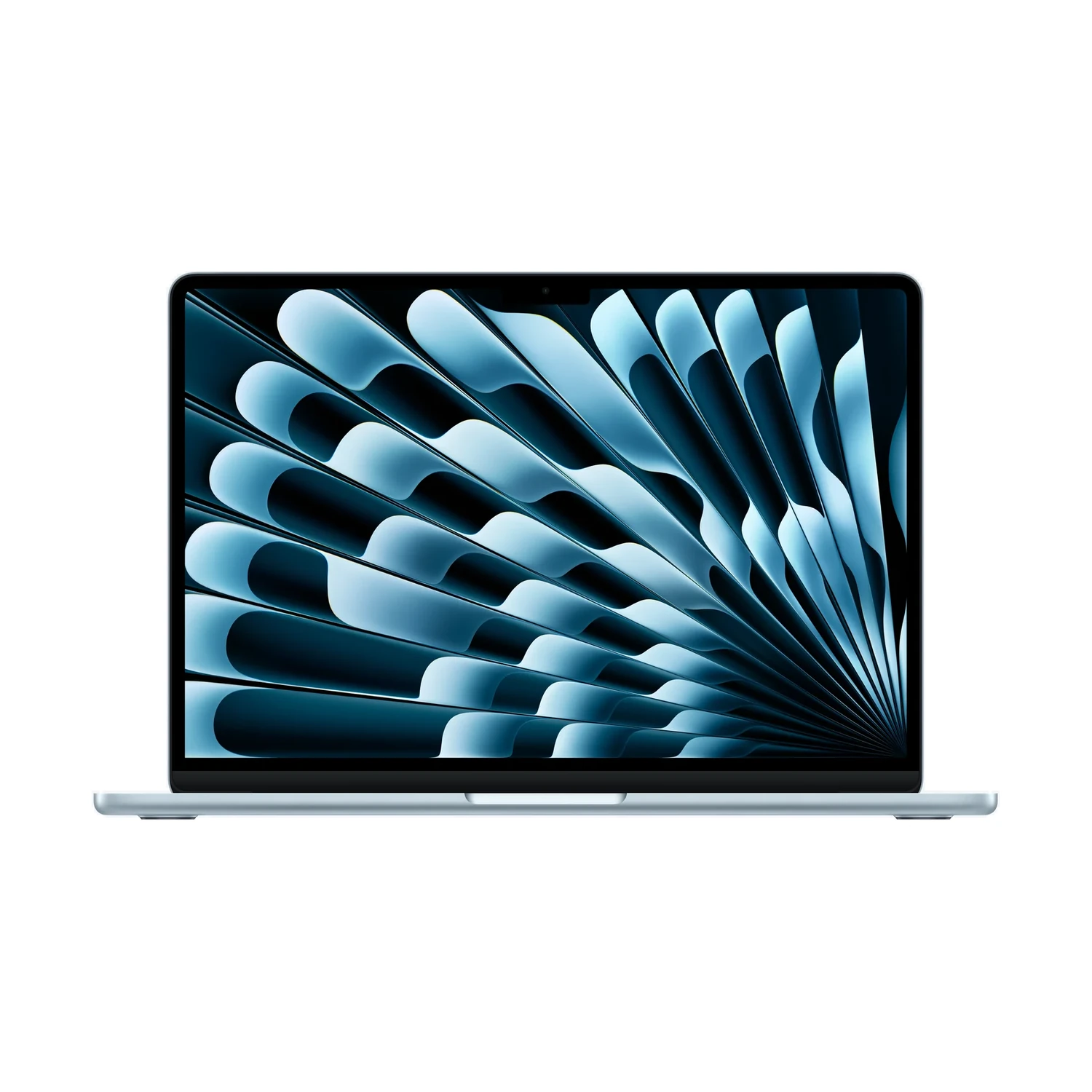
What changes when you choose 1TB?
The SSD holds macOS, installed applications and saved files. A 1TB SSD gives more local storage capacity than a 512GB SSD. It does not automatically add RAM, change the processor or make every task faster. This guide compares capacity; it does not claim a measured SSD speed difference.
Keep the memory decision separate. If your problem is working with more applications or larger projects at once, our 16GB versus 24GB MacBook Air memory guide addresses that choice. Buying a larger SSD alone does not turn 16GB of unified memory into 24GB.
Compare the bundles that actually exist
| 13-inch M5 Air bundle listed | Memory | SSD capacity |
|---|---|---|
| 16GB RAM + 512GB SSD | 16GB | 512GB |
| 16GB RAM + 1TB SSD | 16GB | 1TB |
| 24GB RAM + 1TB SSD | 24GB | 1TB |
These are the current bundles on the NextBuy 13-inch M5 MacBook Air listing. For a storage comparison, begin with 16GB/512GB versus 16GB/1TB, keeping colour and the exact chip configuration consistent where possible. Comparing 16GB/512GB with 24GB/1TB changes memory too.
The parent specification includes both 8-core and 10-core GPU versions. Its memory/storage selector alone does not establish the GPU inside every retail package. Confirm that detail on the exact offer before treating the whole price difference as an SSD premium. Our MacBook chip-name and CPU/GPU explainer shows how to read those separate fields.
Apple’s official M5 Air specifications describe the manufacturer’s wider options. They do not establish that every configuration is offered locally.
Make a storage budget before spending
On your current Mac, open System Settings → General → Storage to see how space is being used. Apple’s storage-management guide explains the categories. If you are moving from another computer, inspect the folders and installed applications you intend to bring across.
- Count what must stay on the laptop: essential apps, current work, downloaded course material, photos and any local phone backups you intend to retain.
- Add working space: an editing project may need original media, temporary files and exported versions at the same time. Development tools can add simulators, containers or virtual machines if your work uses them.
- Allow for growth and updates: use your own likely additions over time. Avoid planning to fill the drive immediately.
- Separate the archive: identify what you can realistically move to another drive or keep online without disrupting work.
For an illustrative calculation only, 180GB of existing files plus 120GB of active projects and 80GB of expected additions totals 380GB, before the operating system, applications and temporary space. That leaves much less margin on a 512GB-labelled drive than on 1TB. Your own figures matter; this is not a claim about how much macOS uses or the free space a new Mac will show.
Cloud space is not the same as offline space
If you work between a home connection, campus and client locations, decide which files must open without downloading first. Budget around the connectivity you actually have, including any recurring storage plan and data costs. There is no single Kenyan connection speed or cloud cost that applies to every buyer.
Apple’s iCloud Drive file guide explains downloading files and keeping selected items downloaded. Those local copies still need space on the Mac. A large cloud allowance therefore does not mean you can keep the same amount available offline on a smaller SSD.
Before relying on a cloud-based archive, test your routine: download a representative project, disconnect from the internet and confirm that its needed files open. Do this with copies and your normal application, without deleting your originals.
Would an external drive solve the problem?
An external SSD can be sensible for an archive you use at a desk. It adds another device and cable to carry, and files on it are available only while it is connected. Check the drive, cable and application requirements instead of assuming every USB-C-labelled combination performs alike.
Choose 1TB internally when constantly connecting a drive would interrupt the way you work, or when your active local library is already pushing the smaller capacity. Consider 512GB with separate archive storage when your daily files fit comfortably and you are willing to manage where everything lives.
Compare the complete setup: laptop, any external drive, suitable cable and a backup arrangement. A lower laptop price alone does not establish the lower total cost.
An archive drive is not automatically a backup. If a file exists only on that drive, it still has just one copy. Apple’s Time Machine guide explains backing up to a separate storage device. More internal capacity does not remove the need to protect your files.
Check the current Kenyan offer
MacBook Air 13-inch with M5
Price range: KShs 170,500 through KShs 253,000
In stockThis is the model’s current price range and stock indication, covering multiple bundles. Select 16GB/512GB and 16GB/1TB in turn to compare the exact current offers; confirm GPU and colour too. Open the product to confirm the exact offer before ordering.
If 512GB fits your measured needs with comfortable room for work, keep that option in the comparison. If your local files and projects already make it a squeeze, investigate 1TB rather than assuming cloud or an external drive will suit you later.
Browse the current NextBuy MacBook catalogue when a different size or family is also relevant. Check the selected configuration, package, warranty terms and delivery arrangements before ordering. A model-wide stock indication is not a guarantee for every bundle and colour.
Questions about MacBook SSD capacity
Does a 1TB MacBook Air have more RAM than a 512GB one?
Not necessarily. The listed 16GB/512GB and 16GB/1TB bundles have the same memory capacity. The separate 24GB/1TB bundle changes both memory and storage.
Is 512GB enough for a student?
It can be, if the required apps, downloaded materials and active files fit with room for growth. Large media projects, local datasets or other course-specific tools can change the answer. Check actual requirements rather than buying by the student label.
Can cloud storage replace a larger SSD?
It can hold files you do not need locally, subject to its plan and your connection. Files you want available offline must still fit on the Mac.
Does 1TB mean twice the speed?
No. Capacity labels are not speed measurements. This guide has not benchmarked the two SSD configurations.