
Kindle Screen Lighting in Kenya: Warmth, Brightness and Dark Mode
Want a warmer page, less light or white text on a dark background? These are different choices. Here is how to separate them—and decide whether automatic brightness is worth choosing Signature Edition.

Which control changes what?
Start with the problem you want to solve. If the page feels too brightly illuminated, adjust brightness. If you prefer a more amber appearance, adjust warmth on a model that supports it. If you want light text on a dark page, try Dark Mode. Turning one control does not substitute for the others.
Amazon’s screen-light instructions explain how to reach the lighting controls from Quick Actions or settings. Menu names can vary with software. Within a book, tap the top to reveal controls; use the brightness scale to adjust illumination. Check the exact device rather than assuming a Kindle phone-app setting proves hardware support.
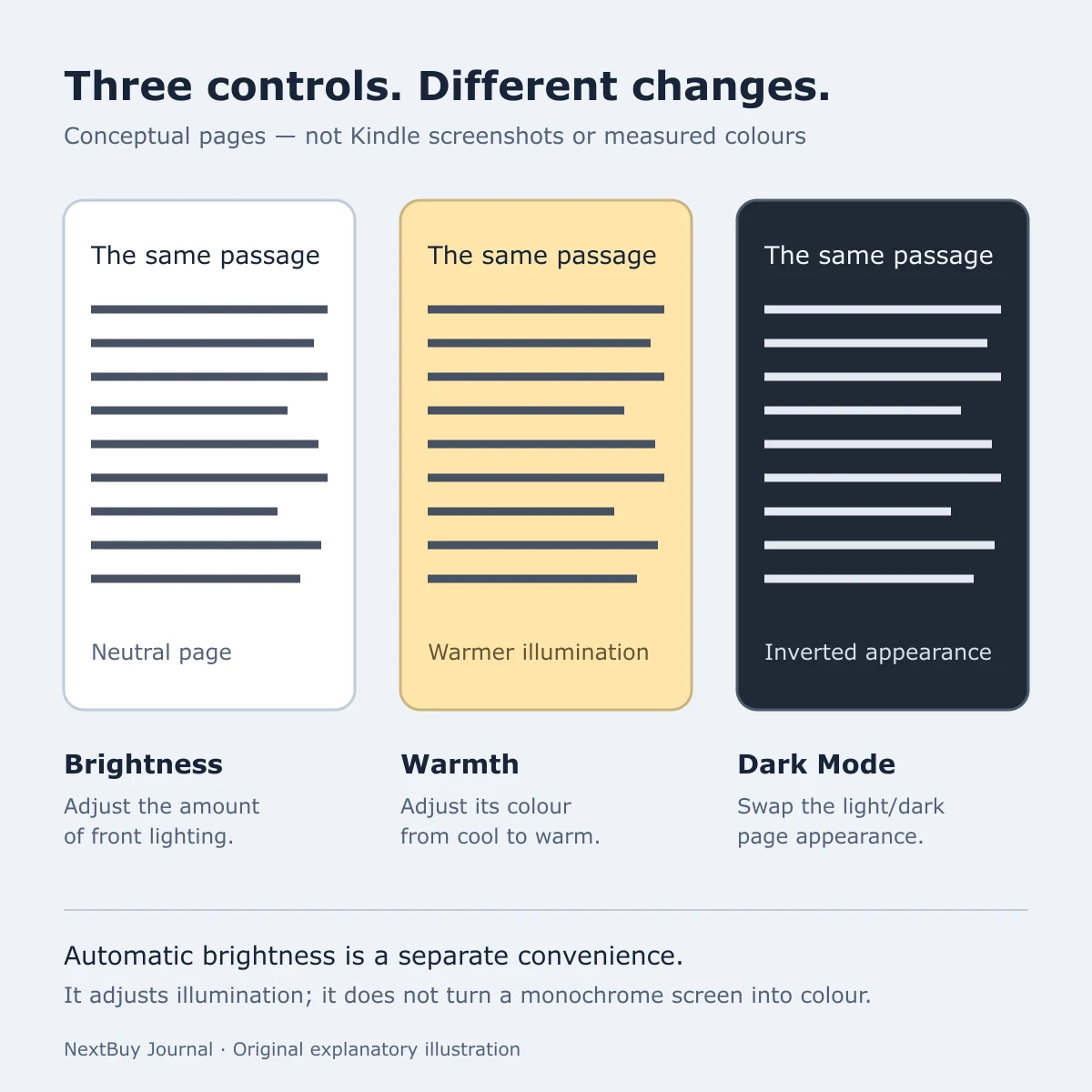
| Control | Question it answers | What it does not establish |
|---|---|---|
| Brightness | How much front lighting do I want here? | Whether I prefer warmer illumination. |
| Warmth | Do I prefer a cool or amber page appearance? | A colour E-Ink display. |
| Dark Mode | Do I prefer an inverted page for this content? | That every PDF will render well. |
| Automatic brightness | Do I want less manual brightness adjustment? | A scheduled warmth setting or more storage for books. |
Automatic brightness and a warmth schedule solve different jobs
The completed NextBuy lighting attributes for the standard Paperwhite 12th Gen list adjustable front light and adjustable warm light. Signature Edition adds Automatic Brightness. Both are monochrome readers; Signature is not the requirement for warm light.
A warmth schedule changes when warmer illumination is used. Automatic brightness changes illumination as surroundings change. Amazon’s 12th-generation Paperwhite user guide describes warmth scheduling separately from brightness. Do not read the word “automatic” in a scheduling menu as proof that a standard Paperwhite has Signature Edition’s auto-adjusting front light.
For a buyer choosing between these two models, ask whether you actually mind changing brightness yourself. If you usually read in one place and set it once, automatic adjustment may be a small convenience. If you regularly move between different lighting conditions, it may be more relevant. That is a workflow choice, not a claim that either model will feel better to everyone.
Try the same passage in your normal reading place
A Kenyan commuter reading on the journey home and someone reading beside a sleeping partner may want different settings. Use your own routine as the decision: keep the book, font size and surroundings consistent, adjust brightness first, then try warmth, then compare the alternative page appearance. Change one thing at a time so you can identify the preference.
Include your actual documents. Dark Mode changes page presentation on compatible devices; it cannot make a dense scanned page reflow like a novel. Amazon advises returning a PDF to its original appearance if it becomes difficult to read in Dark Mode. Our Kindle PDF guide explains why document layout and screen size deserve a separate check.
Before paying for a lighting upgrade, identify the exact generation, confirm the listed controls and consider your normal files. A warmer light is not a promise about sleep or eye health. This article includes no NextBuy hands-on comfort or battery test.
Two completed Paperwhite examples, with live offers
These examples share a seven-inch, 300ppi black-and-white display and adjustable warmth. Their saved lighting attributes expose the useful difference: manual brightness on standard Paperwhite versus automatic brightness on Signature Edition. Storage and charging convenience are separate reasons to compare the models.
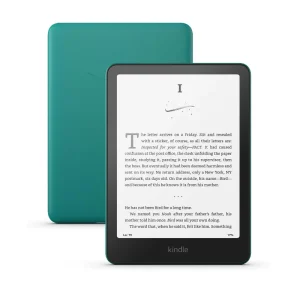
Amazon Kindle Paperwhite (12th Gen)
KShs 27,500
In stock
16GB Paperwhite 12th Gen: adjustable front light and warm light. A sensible comparison if you are happy setting brightness yourself.
View product & options →Inspect the 16GB configuration and choose its finish. The reviewed Black configuration has a completed description; other finishes do not change these lighting features.

Amazon Kindle Paperwhite Signature Edition (12th Gen)
Price range: KShs 30,000 through KShs 31,000
In stock
32GB Signature Edition 12th Gen: the same warm-light choice plus automatic brightness. Compare its convenience with your own reading routine.
View product & options →Inspect the 32GB configuration and select a finish. The page may select an offered finish; confirm its actual selection before buying. Prices and stock in the cards come from the live catalogue and can change.
For the wider shortlist, see our Kindle Aluminum versus Paperwhite buying guide or browse E-Ink Devices. This article focuses on lighting controls rather than ranking every reader.
Questions readers ask
Do I need Signature Edition for warm light?
No. The completed standard Paperwhite 12th Gen and Signature Edition records both include adjustable warm light. Automatic brightness is the additional lighting feature on Signature Edition.
Does warm light make a Kindle display colour illustrations?
No. A warmer illumination appearance is different from a colour E-Ink display. These two Paperwhite examples remain monochrome.
Will Dark Mode fix a hard-to-read PDF?
Not necessarily. Try the actual file. If inversion makes it worse, return to its original appearance; consider layout and screen size separately.
Sources and image credits
Lighting controls checked against Amazon screen-light help, Amazon Dark Mode help and the linked Paperwhite user guide. Model examples use the live NextBuy E-Ink schema, populated attributes and completed descriptions.
Product image: existing NextBuy Paperwhite 12th Gen library. Explanatory diagram: original NextBuy Journal artwork, created for this guide; no third-party screenshot or demonstration reproduced.