
Kindle Documents in Kenya: Send to Kindle or USB Transfer?
An EPUB or PDF on your laptop is not yet a book ready to read on your Kindle. Choose the transfer route, check the file and open the result before you leave Wi-Fi behind.
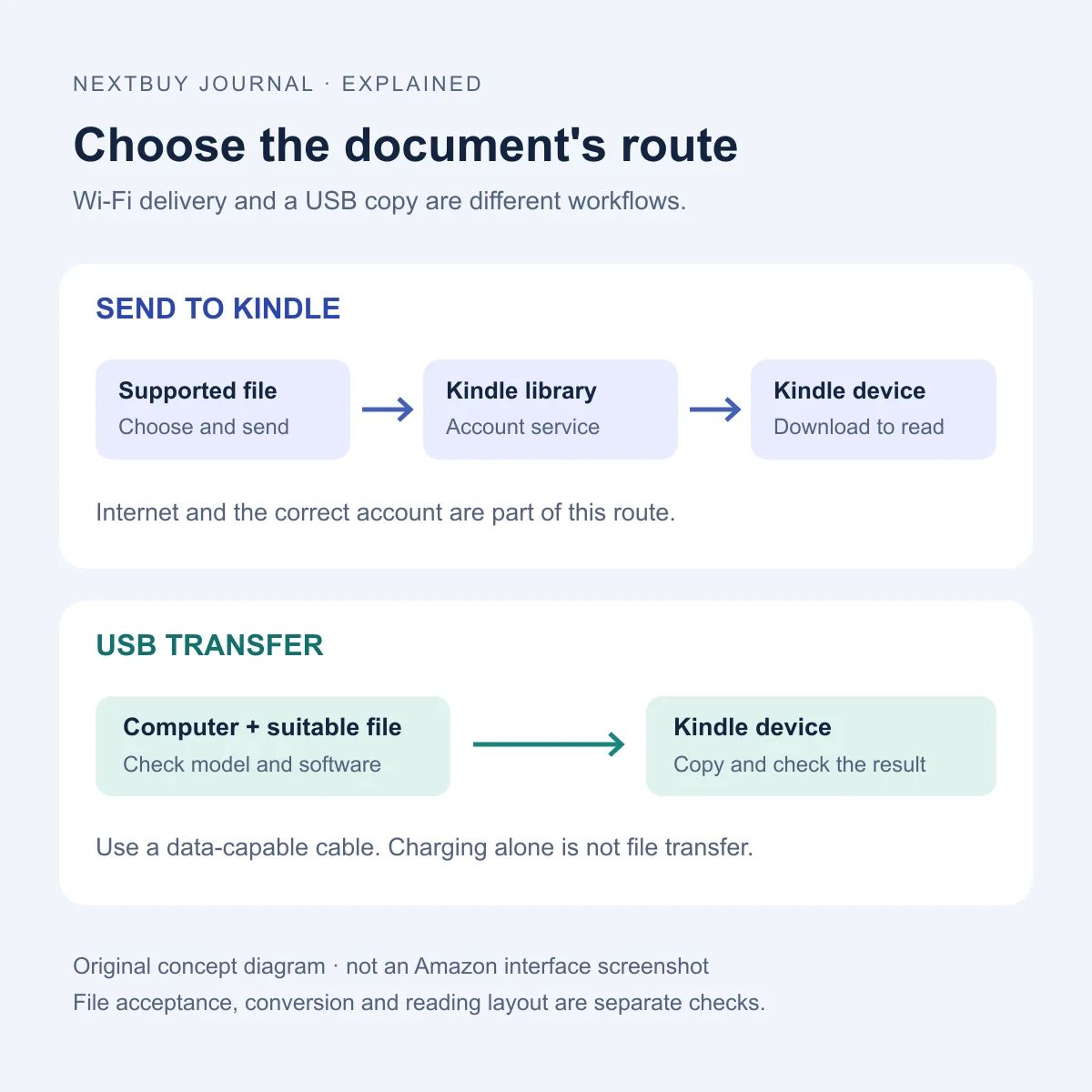
Wi-Fi delivery and a cable copy solve different problems
A Kindle listing may show both Wi-Fi and USB-C. Wi-Fi supports connected services; USB-C is also the physical charging and computer connection. Neither label alone tells you that every document will open, or that plugging in a cable has copied a file.
For a Kenyan reader with an EPUB from a publisher or a PDF for a journey, start with the file you actually have. Decide whether you want Amazon’s library delivery route or a direct computer-to-device transfer. Keep that choice separate from screen size, storage capacity and the look of the cover.
The diagram shows those routes conceptually. It does not show Amazon’s conversion process as a guaranteed result for every file, nor does it imply that a USB copy automatically adds a document to an online library.
Use Send to Kindle for supported personal-document delivery
Amazon’s Send to Kindle webpage currently lists EPUB, PDF, Word documents, text and common image formats among its supported inputs, with a maximum file size of 200MB. Sign in to the intended Amazon account and follow its delivery options. Do not confuse an accepted input format with a promise that the same file behaves identically through every transfer route.
Amazon also documents web, email, mobile-app and desktop-app routes for personal documents. For a first transfer, pick one route and verify the result before setting up a more elaborate routine. Check that the device is linked to the account you are using.
This route needs an internet connection to send and deliver the document. If you are preparing reading for a trip, finish the download while connected and open the document on the Kindle. A title appearing in a library view is a prompt to confirm its download, not a substitute for checking the readable file.
USB transfer needs more than a charging indication
Use a data-capable cable and check the exact computer and Kindle instructions. A device that charges may still need a different connection mode or software before you can browse and transfer files. Keep a copy of the original on your computer while checking the transfer.
Amazon’s USB file-transfer guidance distinguishes browsing/transferring from charging only. It also says Kindle Scribe and devices released in 2024 require a separate application for USB transfers on a Mac, such as the Send to Kindle app’s USB File Manager. Check the current host requirements rather than assuming every Mac or operating-system release has identical support.
For EPUB files, Send to Kindle is the documented input route linked above. Do not treat dragging a raw EPUB into a folder as equivalent to sending it through that service. Follow the device’s supported direct-transfer formats and location instructions for the file you intend to copy.
A successful transfer is not the same as a comfortable page
Open the document, check its contents list if present and inspect several representative pages. Look at headings, images and any tables you rely on. A transfer can succeed while the layout still needs a different source file or reading approach.
Our Kindle PDF guide explains the separate problem of fixed pages, scans and screen size. Increasing storage or choosing another exterior colour does not make a dense scanned page reflow like a text-based book.
If conversion fails, consult Amazon’s document-conversion guidance. File structure, protection and unsupported content can affect the result. If a purchased file is restricted to another service, ask its provider for a suitable Kindle-compatible option; a different cable or a larger Kindle is not a format fix.
Paperwhite is a reading example, not a substitute for checking the file
The reviewed Paperwhite 12th Gen 16GB Black configuration is a seven-inch monochrome reading device with Wi-Fi and USB-C. It illustrates both connection choices in this guide. Its included USB-C cable does not remove the need to check the computer, transfer mode and document format.
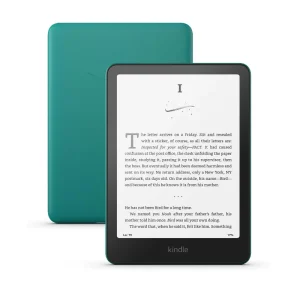
Amazon Kindle Paperwhite (12th Gen)
KShs 27,500
In stock
Wi-Fi and USB-C support different document-transfer workflows. Choose the exact finish and confirm the file route separately; this reading model has no pen support.
View product & options →Inspect the reviewed 16GB configuration and its live offer. Review the selected finish and package contents on the product page before ordering.
Browse E-Ink devices around the reading and writing tasks you need. Do not buy a different device solely because an untested document failed to appear.
Keep a short checklist for the first transfer
| Check | What to establish |
|---|---|
| File | You have the intended document in a format supported by the chosen route. |
| Destination | The account and device are the ones you intend to use. |
| Connection | Online delivery has completed, or the computer can browse the Kindle for a supported USB copy. |
| Reading result | The file opens, important pages are readable and your travel copy is downloaded. |
Use a small representative document first. That makes it easier to distinguish a connection problem from an issue with one large or complicated file. These are suggested checks, not NextBuy test results.
Questions and official help
Does USB-C mean any cable will transfer my documents?
No. Check that the cable supports data, the device is in the appropriate mode and your computer has the required software.
Can I send an EPUB through Amazon’s website?
EPUB is listed among Send to Kindle’s supported inputs. File suitability and successful conversion still need checking.
Will a file in my Kindle library always be ready offline?
Confirm that it has downloaded to the device and opens before relying on it without internet.
Primary instructions and image credits
Use the current Amazon Send to Kindle page, computer/USB instructions and conversion help. No suitable official tutorial video was verified for this exact comparison; the current written workflow is linked directly.
Workflow illustration: original NextBuy Journal artwork. Product photograph: genuine existing NextBuy Kindle library. No document upload, account sign-in or hands-on transfer test was performed for this article.