
Pocket 3 as a Webcam in Kenya: USB-C, File Transfer and HDMI Explained
Using a camera for a live computer call is different from recording a clip or copying footage. Check the connection and software workflow before choosing a Pocket 3 package or buying adapters.
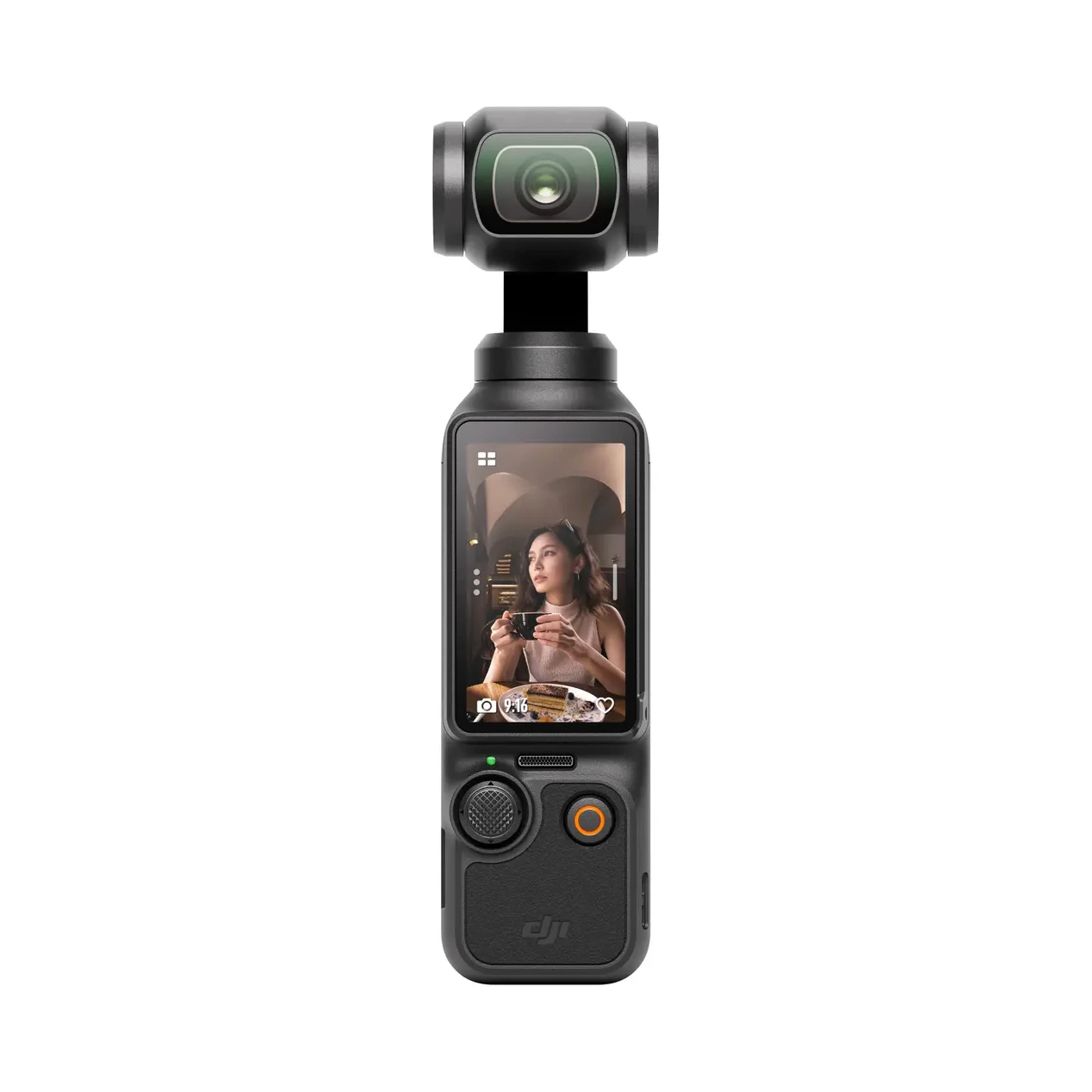
Separate recording, copying and a live camera feed
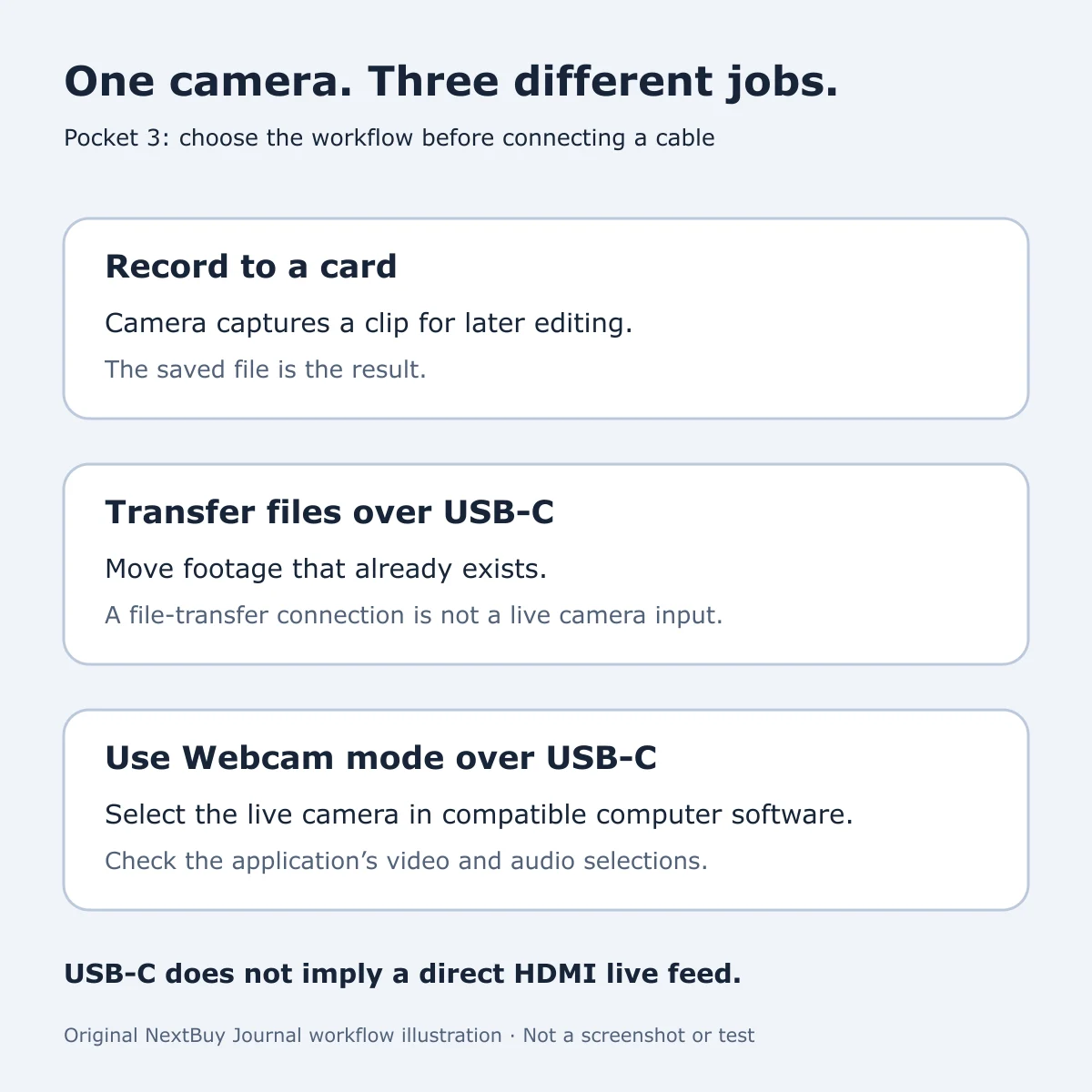
The Pocket 3’s completed catalogue attributes list Webcam Mode, USB-C connectivity and no internal recording storage. Those labels describe different parts of the workflow. A clip saved to a compatible microSD card is a file for later use; transferring that file to a computer is not the same as selecting the camera live in an application.
DJI’s Pocket 3 FAQ confirms USB-C connection for file transfer or webcam use. Its beginner guide explains powering on, connecting to a computer and choosing Webcam on the camera. Check the camera’s selected mode rather than assuming that plugging in a cable establishes the task you intended.
Check the actual computer and application
For a Kenyan tutor, small-business presenter or remote worker, start with the computer and software you already use. Write down the operating system, application and intended camera position. If the computer belongs to your employer, confirm that you can select an external camera before purchasing equipment around it.
DJI’s webcam support guide describes USB Video Class operation and gives platform-specific examples, including OBS Studio on Windows and Photo Booth on macOS. That is useful guidance, but not a guarantee for every operating-system version, application or adapter chain.
In your chosen software, check the selected video input separately from its microphone selection. A live picture does not prove that your intended audio source is active. Treat camera framing, voice pickup and the computer’s permissions as separate rehearsal items rather than judging the setup from a single preview image.
A USB-C socket does not promise direct HDMI live output
DJI’s Pocket 3 FAQ answers no to using its USB-C port with an HDMI cable for real-time footage. Its HDMI-output guidance distinguishes using Webcam on a computer from connecting a camera directly as an HDMI source.
That matters if your venue uses a hardware video switcher or an external screen. Before buying an adapter, describe the entire route: camera, cable, computer if any, and destination. Ask for confirmation of that exact arrangement. This guide does not recommend a third-party converter or claim a tested workaround.
Likewise, a headline camera recording mode is not evidence of the resolution your meeting application will receive or transmit. Check the live options in that application and the requirements of the final destination. Do not buy on an assumed conversion from a recording specification to a streaming specification.
Run a short rehearsal before the important session
| Check | What to confirm |
|---|---|
| Connection mode | The camera is in Webcam mode, rather than only offering existing files. |
| Picture | Your normal application has the intended camera selected and the framing you need. |
| Sound | The selected microphone is the one you intend to use; make a short test recording or call. |
| Position and cable | The camera is supported securely and the cable can reach without pulling it over. |
| Session plan | Check power, computer settings and connection behaviour before relying on the setup for a long session. |
These are suggested checks, not NextBuy test results. An online meeting still depends on the computer, software and network beyond the camera. No upload speed, uninterrupted duration, image-quality ranking or latency figure is promised here.
Choose the package separately from Webcam Mode
The saved Pocket 3 family has multiple packages. The reviewed Standard option includes the camera, Type-C cable, protective cover, wrist strap and threaded handle; it does not include a wireless microphone, battery handle or memory card. Choose extras around the recording and support equipment you actually need.
DJI Osmo Pocket 3
Price range: KShs 50,500 through KShs 77,000
In stock
Pocket 3: Webcam Mode and USB-C are saved model features. Package contents differ; confirm the exact option rather than assuming every kit includes a microphone or tripod.
View product & options →Inspect the reviewed Standard configuration. Its live offer and description show the actual kit. The model card may cover other packages, so select the intended option before ordering.
If you also plan to record handheld clips, our Pocket camera zoom explanation covers a separate image-framing decision. Digital zoom, a webcam connection and the package’s included accessories should not be treated as one feature.
Questions readers ask
Does file transfer mean the camera is working as a webcam?
No. Copying saved footage and providing a live camera input are different workflows. Check the selected camera mode and application input.
Can I assume a USB-C to HDMI cable gives direct live output?
No. DJI’s Pocket 3 FAQ explicitly says its USB-C port does not provide real-time footage through an HDMI cable. Verify the complete intended setup.
Is every computer application guaranteed to work?
No. Use DJI’s current platform guidance and test your actual operating system, software and connection before relying on it.
Manufacturer demonstrations and credits
Open DJI’s official beginner guide for its embedded basic-operation demonstrations and the Webcam Mode section. Use the linked webcam instructions for the relevant platform. Manufacturer videos remain on DJI’s original page; none has been downloaded or presented as a NextBuy recording.
Product photograph: genuine existing NextBuy Pocket 3 library. Workflow illustration: original NextBuy Journal artwork created for this guide, not a copied manufacturer diagram or hands-on screenshot.